Moving WaiterOne from one iPad to another is simple. Follow the steps below to transfer your database and continue working on your new device.
1. Install WaiterOne on the new iPad
First, download and install WaiterOne on your new iPad.
2. Create a backup on the old iPad
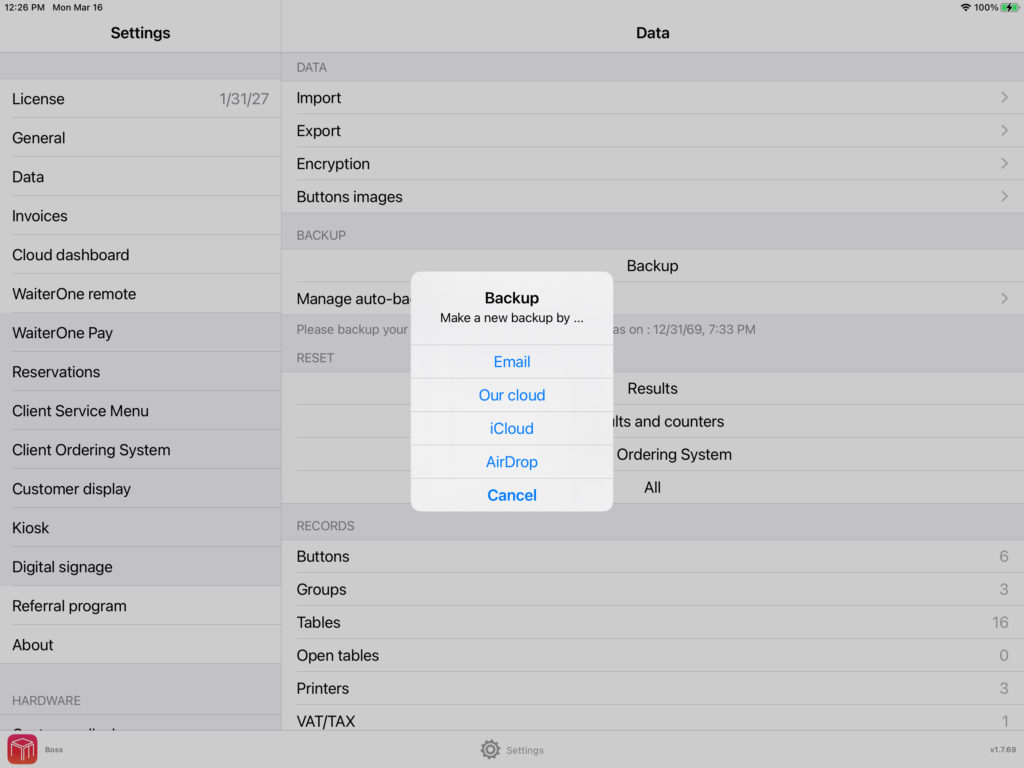
On your old iPad, open WaiterOne and go to:
Settings → Data → Backup
Create a backup and choose how you want to send it:
- AirDrop
Then send the backup file to your new iPad.
3. Open the backup on the new iPad
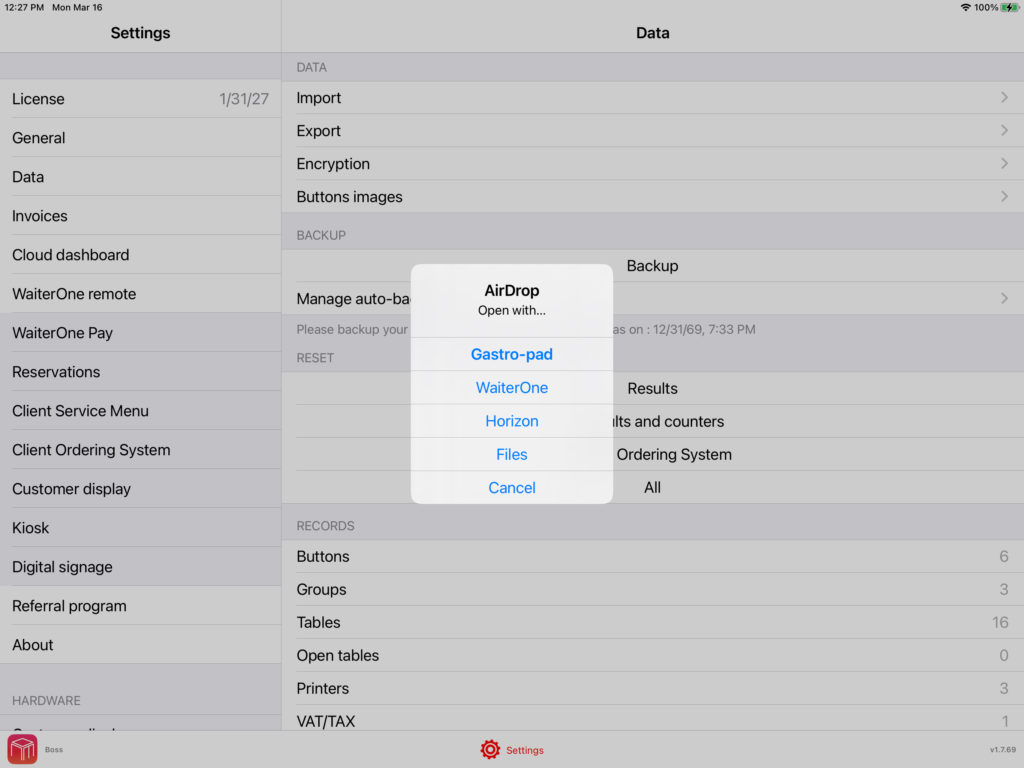
On the new iPad, receive the backup file and open it in WaiterOne.
Depending on how you sent it:
- If you used AirDrop, you can usually open it directly.
- If you received it by email or saved it in Files, tap and hold the backup file for a moment, then choose Open in WaiterOne or Share to WaiterOne.
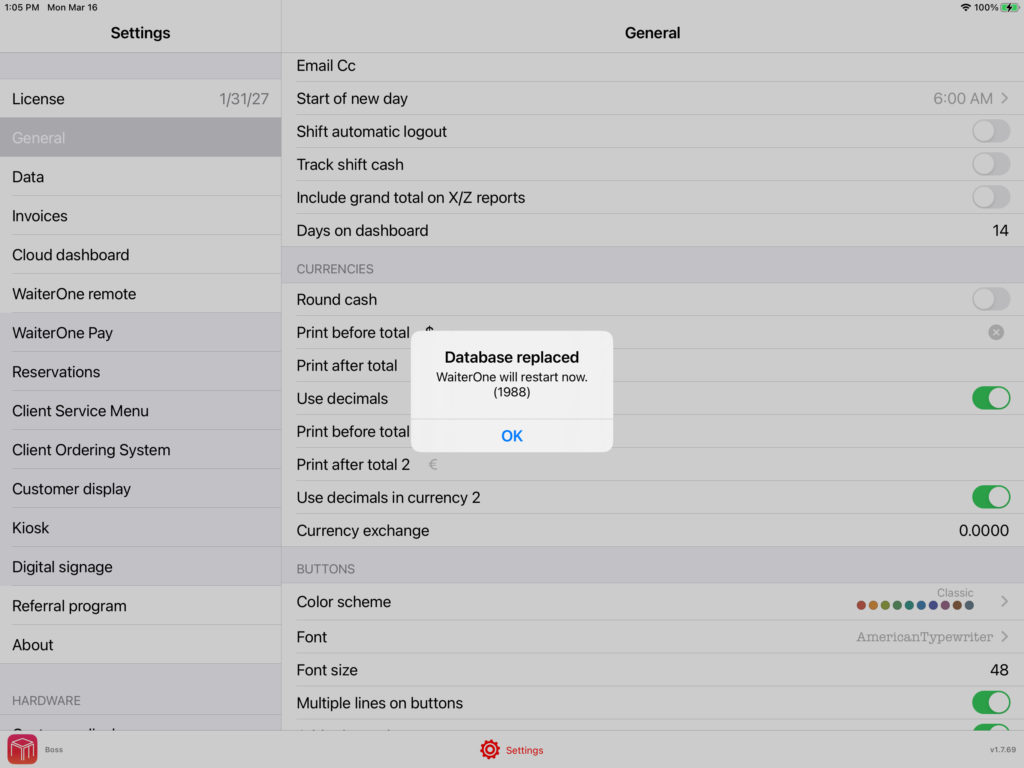
4. Replace the database
WaiterOne will ask if you want to replace the current database.
Confirm this step.
At that moment, the administrator code should be displayed.
5. Change your online dashboard password
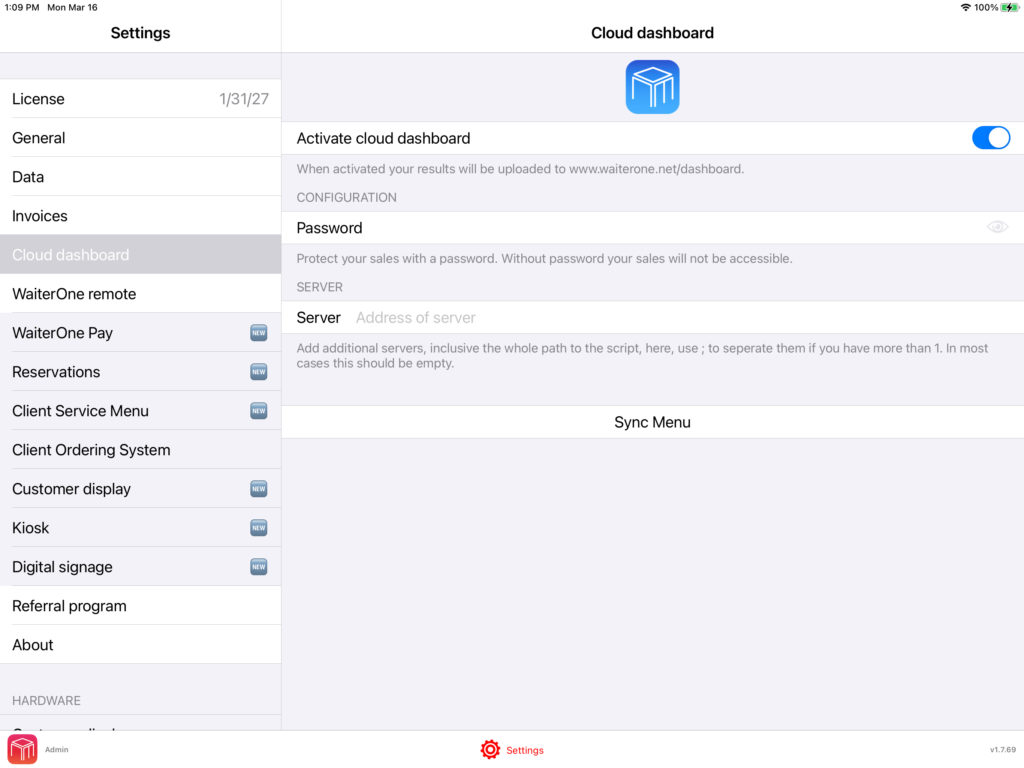
After the import, start WaiterOne on your new iPad and go to:
Settings → Online Dashboard
Please change your password there.
This is important because the password is automatically changed after the import. We do this for security reasons, so nobody can know your password if they ever get access to your database.
6. Contact us to transfer your license
Once the transfer is complete, contact us so we can move your WaiterOne license to the new iPad.
If you would also like your historical sales data to be transferred, please let us know as well, since this must be transferred separately.