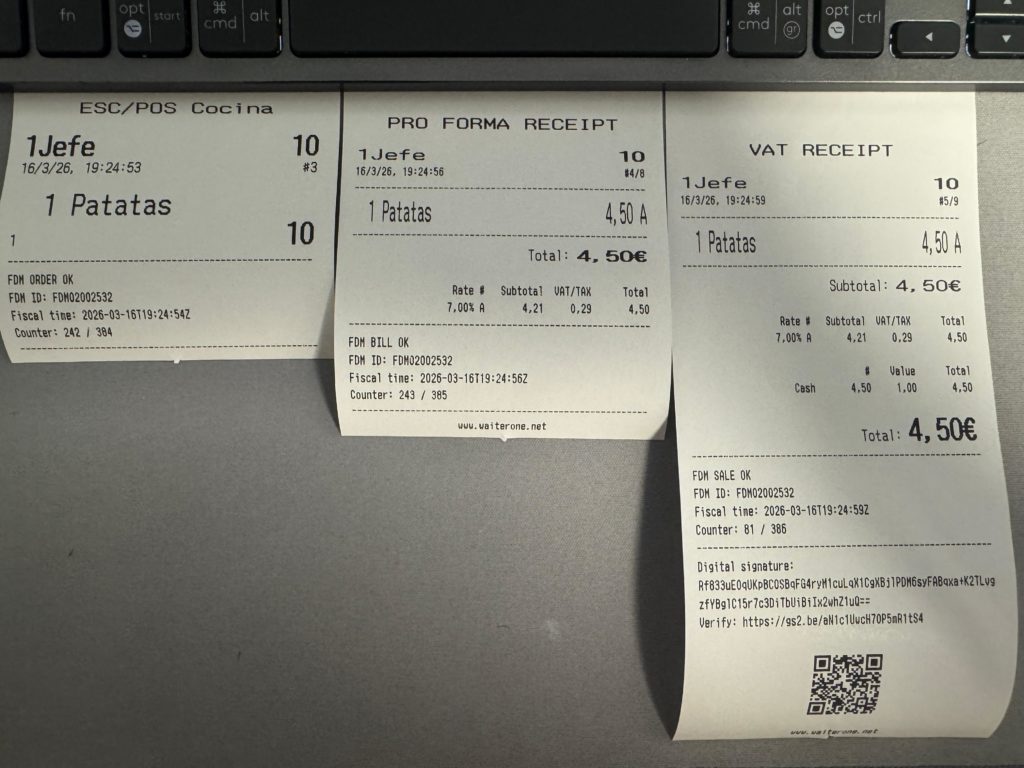
This guide explains how to activate and configure the Belgian Fiscal Data Module (FDM) in
the WaiterOne POS system. The FDM integration is used for staff time registration and fiscal POS
operations.
1. Configure Staff Social Security Numbers
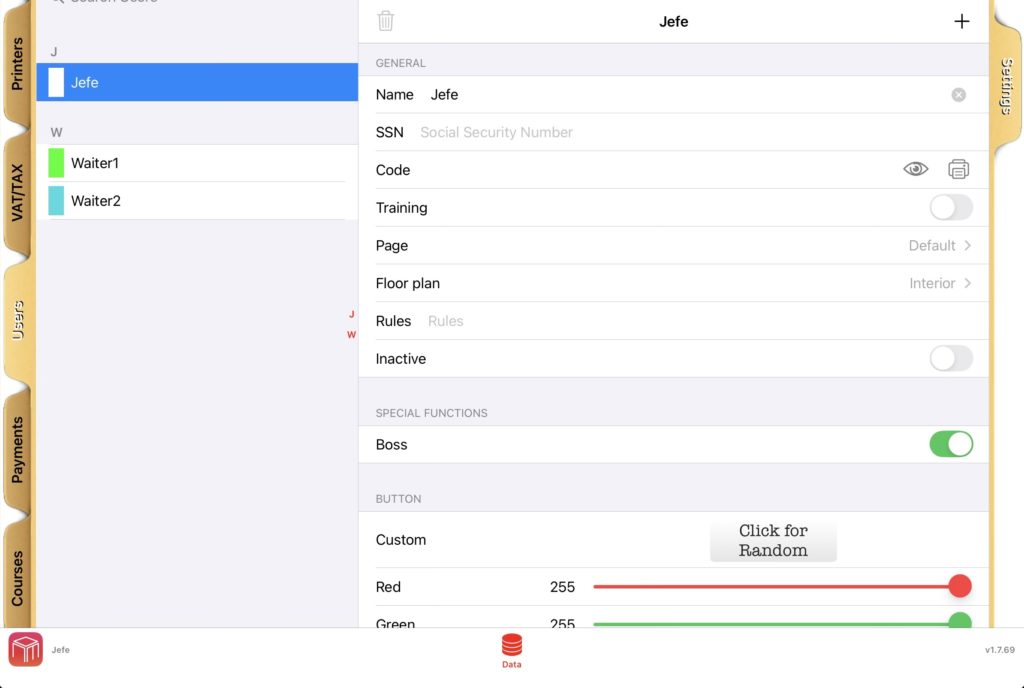
Each POS operator must have their Belgian Social Security Number (SSN) configured.
Steps:
- Open the POS menu.
- Navigate to: Menu → Data → Users.
- Select each user that will operate the POS.
- Fill in the SSN field with the employee’s official Belgian Social Security Number.
Important: The SSN must contain 11 digits and correspond to the official number of the
employee. This value is required for Work-In and Work-Out fiscal events.
2. Configure Payment Methods
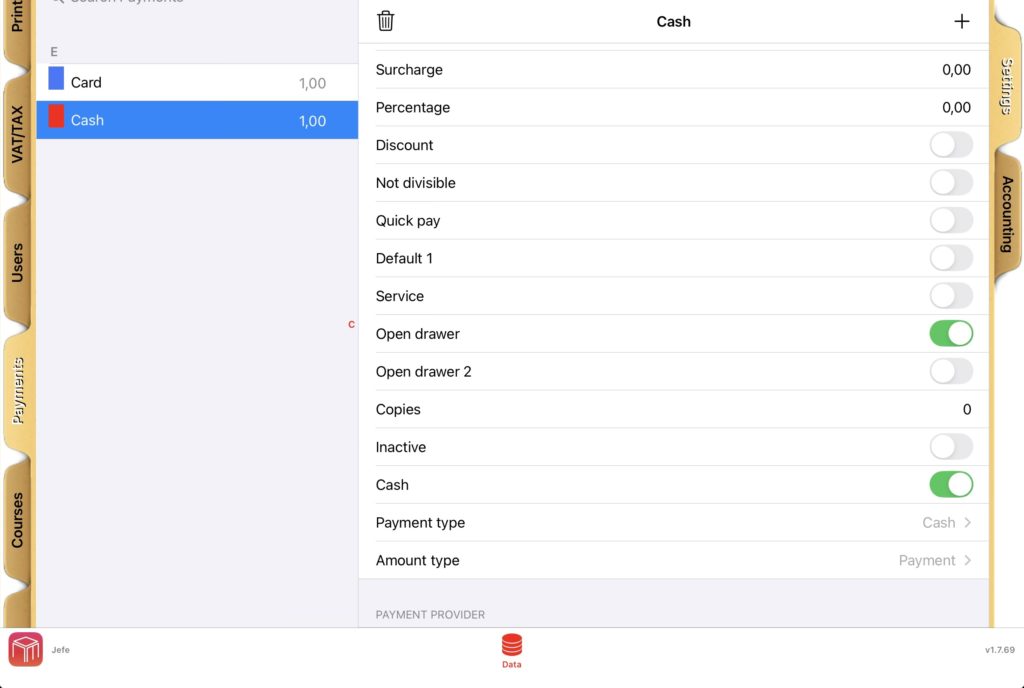
Each payment method used in the POS must be correctly mapped for fiscal reporting.
Steps:
- Open the POS menu.
- Navigate to: Menu → Data → Payments.
- For each payment method configured in the system, select the appropriate Payment Type and Amount Type.
Typical configuration examples:
| Payment Method | Payment Type | Amount Type |
| Cash | CASH | PAYMENT |
| Card | CARD | PAYMENT |
| Tip in cash | CASH | TIP |
| Voucher | VOUCHER | PAYMENT |
Important: Every payment method used in the POS must have these fields correctly
configured.
3. Configure Belgium FDM Settings
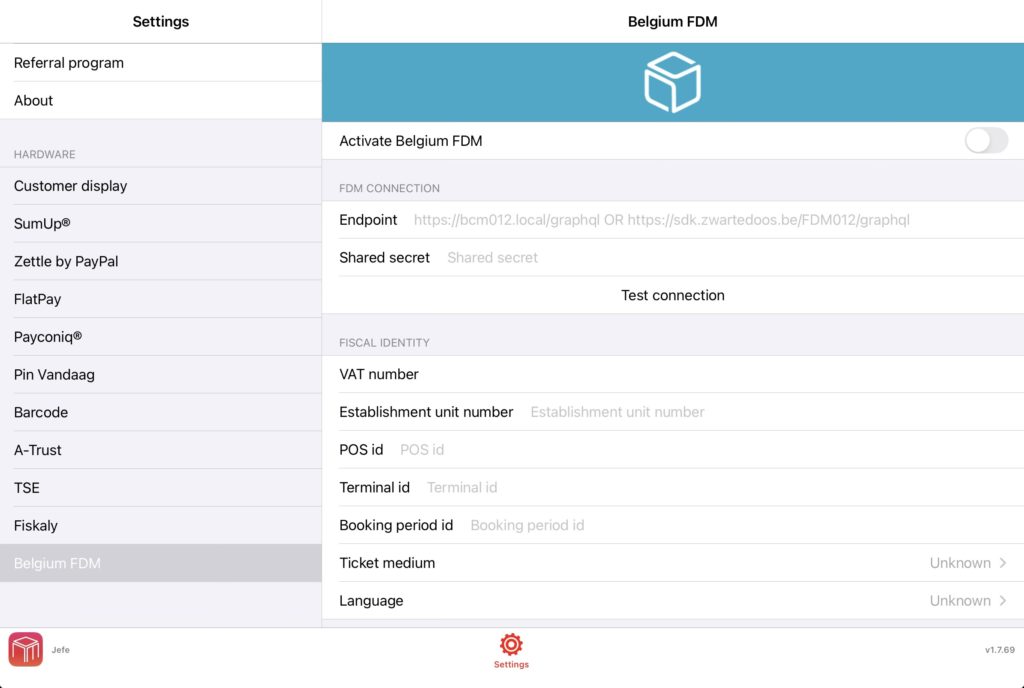
The FDM connection parameters must be configured in the POS.
Steps:
- Open the POS menu.
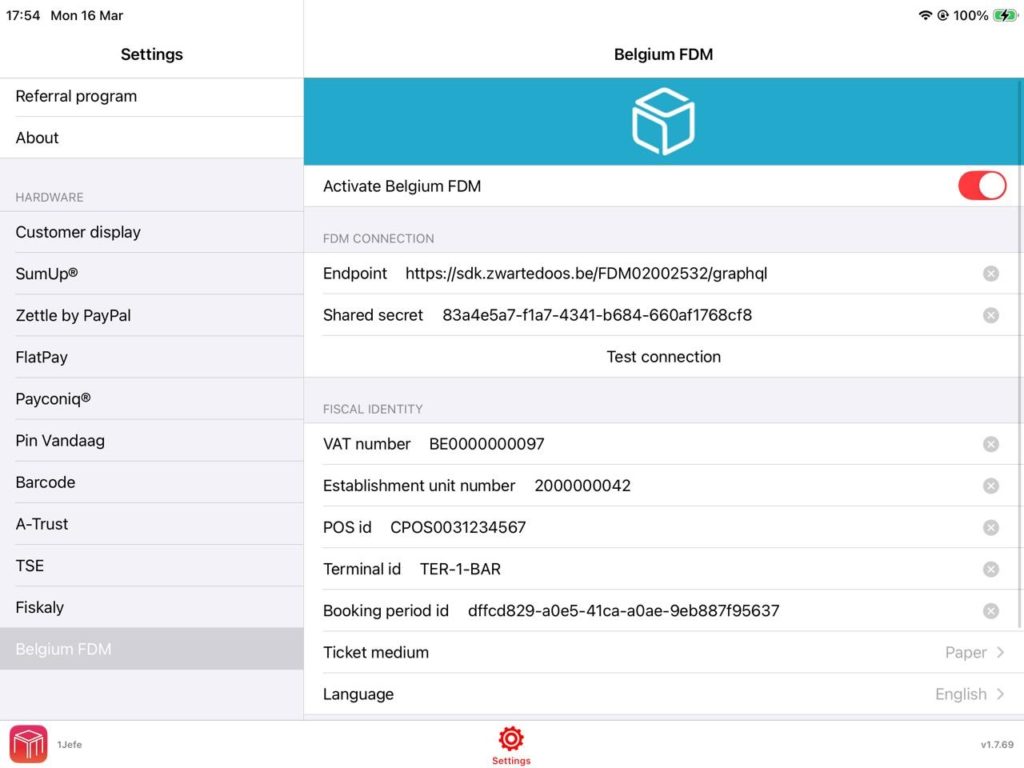
- Navigate to: Menu → Settings → Belgium FDM.
- Fill in all required configuration fields.
4. System Behaviour After Activation
Once all parameters are configured, the POS will automatically send fiscal events to the FDM
system.
- Staff Time Registration:
Work-In events when a user starts working.
Work-Out events when a user finishes working.
- Fiscal POS Events:
Orders, Bills, Payments.
5. Important Notes
- Each operator must have a valid SSN configured.
- Each payment method must have a valid fiscal mapping.
- The Belgium FDM settings must be fully configured.
6. Troubleshooting
- Verify that all users have a valid SSN configured.
- Check that all payment methods have Payment Type and Amount Type defined.
- Ensure the Belgium FDM configuration fields are correctly filled.
- Confirm that the POS has an active internet connection.
7. Support
If you experience issues during activation, please contact your POS provider, technical support or WaiterOne support. When requesting support, provide the POS identifier, terminal identifier, and screenshots of the configuration.