Tag: Affordable POS for Restaurants.

  • How to Install and Set Up WaiterOne Remote

    If you want to take orders faster and more efficiently, using the WaiterOne Remote app on an extra iPad or iPhone is the perfect solution. Setting it up is quick, but there are a few important settings you need to adjust to make sure everything works smoothly.
    Follow the steps below to connect your Remote device to your main WaiterOne system.

    On the Main iPad (Running WaiterOne)

    1. Activate WaiterOne Remote
      Open the Settings inside the WaiterOne app and enable WaiterOne Remote.
    2. Allow Location Access
      Go to the iPad’s main Settings app. Scroll down to WaiterOne (either directly in the list or under Apps > WaiterOne) and set Location Access to Always.
      Tip: Without this setting, your Remote devices might not find the main iPad.
    3. Enable Local Network Access
      Still in the iPad’s Settings, enable Local Network access for WaiterOne.
      This allows your main device to communicate with Remotes over the same Wi-Fi network.
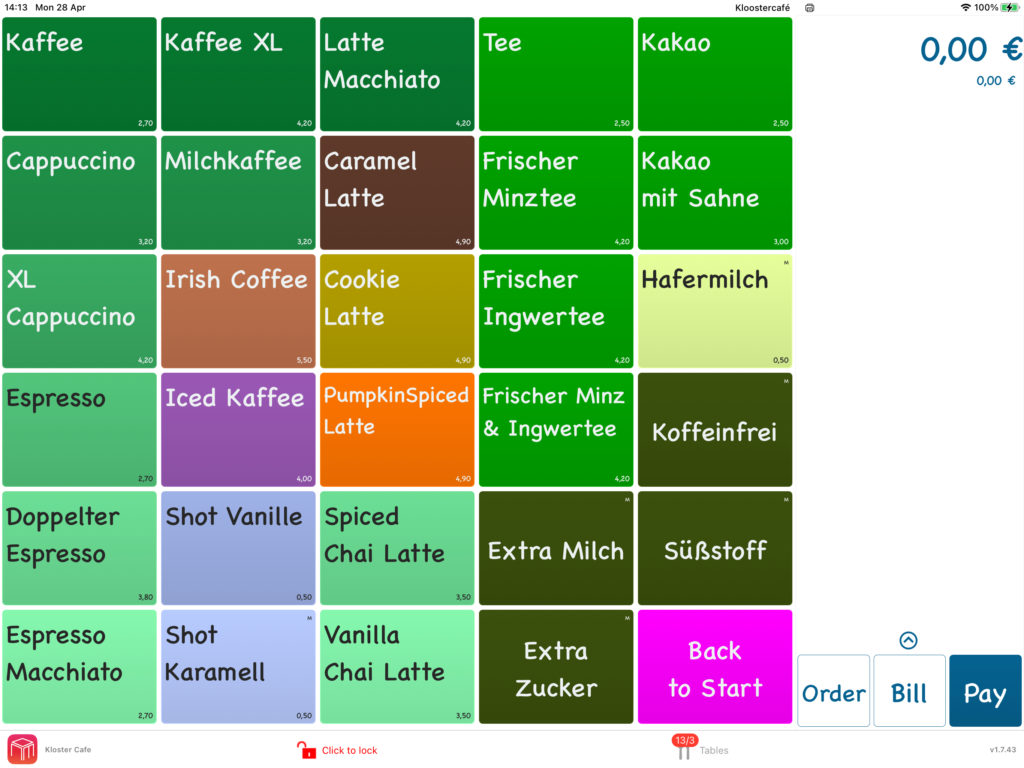
    On the Remote iPad or iPhone

    1. Enable Local Network Access
      On your Remote device (iPad or iPhone), open the Settings. Scroll down to Remote (or Apps > Remote) and enable Local Network access.
    2. Connect to the Server
      Open the WaiterOne Remote app and go to Settings → Server.
      • Normally, the host (your main iPad running WaiterOne) should appear automatically.
      • If it doesn’t, there may be a network issue. You can manually enter the IP address instead:
        • On your main iPad, go to Settings → Wi-Fi.
        • Tap the connected network name and find your device’s IP address.
    3. Download the Configuration
      After selecting or entering the server, simply press Download.
      The Remote app will import the necessary settings and link to the main WaiterOne system.
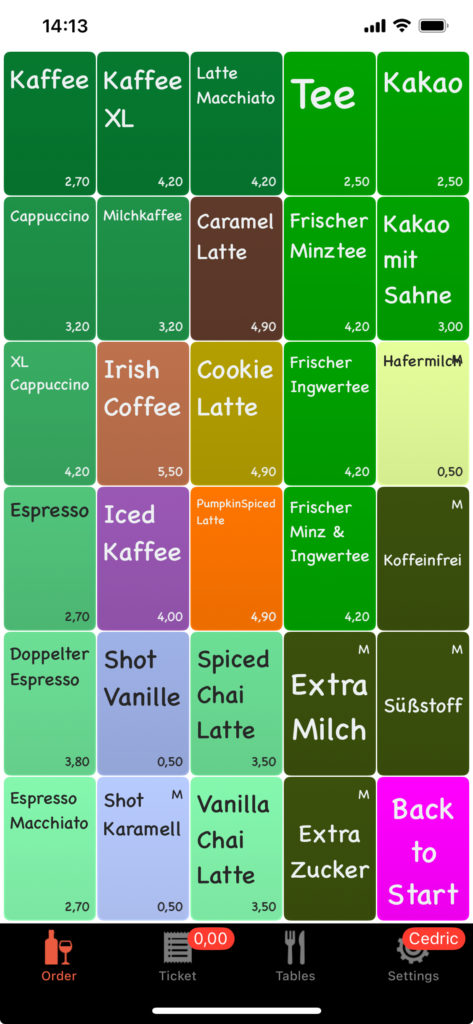
    WaiterOne Remote on iPhone

    Final Tips

    • Make sure both devices are connected to the same Wi-Fi network. Once configured your remote will also work without being connected to the same Wi-Fi network.
    • Double-check that Local Network and Location permissions are allowed, or the Remote won’t be able to find the server.
    • If you experience connection issues, restarting both devices and your Wi-Fi router often helps.

    By following these steps, you’ll have your WaiterOne Remote up and running in just a few minutes, ready to take orders and speed up your service!


    Quick Setup Checklist ✅

    On the Main iPad:

    •  Open WaiterOne → Settings → Activate WaiterOne Remote.
    •  Go to iPad Settings → WaiterOne → Set Location Access to Always.
    •  Enable Local Network access for WaiterOne.

    On the Remote iPad/iPhone:

    •  Enable Local Network access for Remote (in iPad/iPhone Settings).
    •  Open WaiterOne Remote → Settings → Server.
    •  Select the server automatically, or manually enter the main iPad’s IP address.
    •  Tap Download to sync settings.
  • Understanding Tax Levels in WaiterOne

    WaiterOne offers a flexible and intuitive way to manage taxes, making it easier for businesses to handle varying tax rates depending on the type of sale. A frequent question we receive is how to set up different tax levels for dine-in versus takeaway orders. Let’s break it down step by step.

    Three Tax Levels Per Group/Table

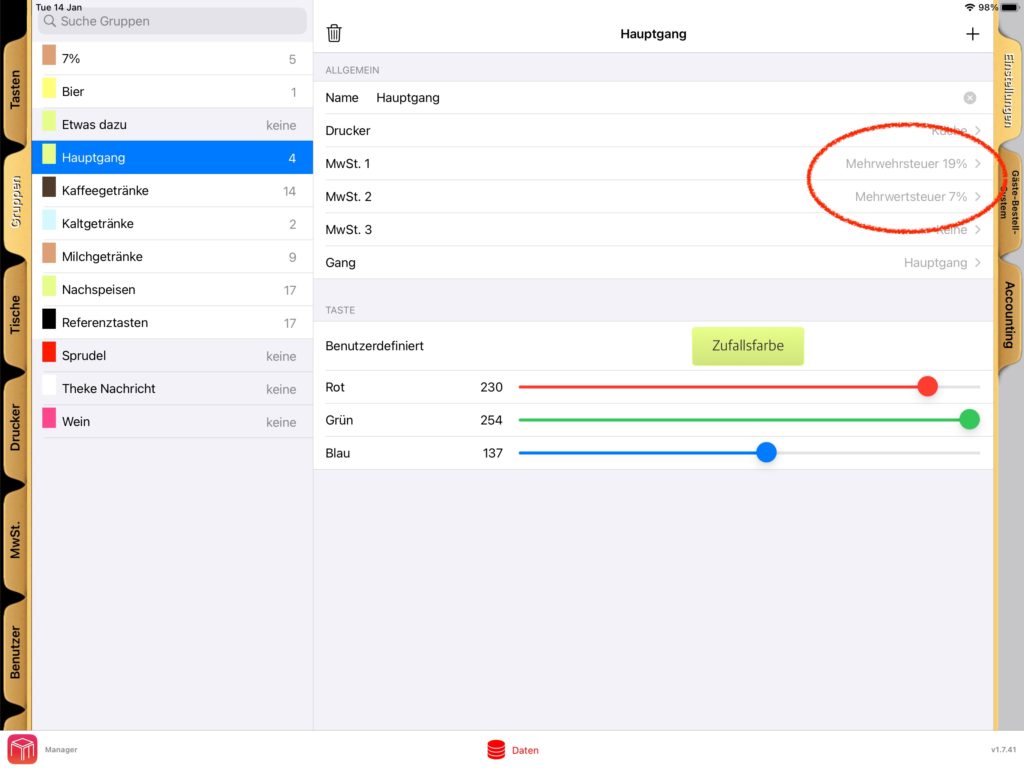
    In WaiterOne, you have the ability to assign up to three tax levels per group or table. This allows you to create different tax settings based on the nature of the sale. For example, you might have one tax rate for dine-in customers and a different one for takeaway orders. Here’s how you can set it up:

    Step 1: Configure a Table for Takeaway

    To differentiate tax rates for takeaway orders, start by creating a table specifically for takeaway sales. Once this table is set up:

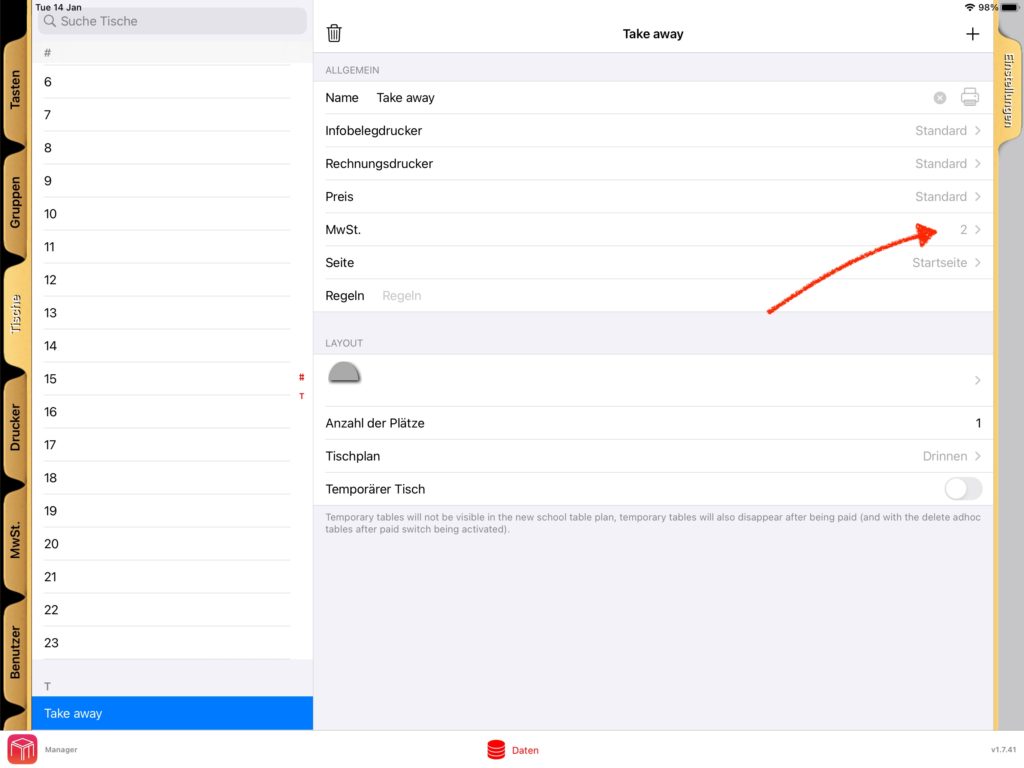
    1. Assign Tax Level 2 as the tax level for this takeaway table.
    2. When you process a sale using this table, the system will automatically apply the tax rate assigned to Tax Level 2.

    This setup ensures that any sales recorded under the takeaway table will be taxed at the appropriate rate.

    Step 2: Adjusting Tax Levels for Other Tables

    If you’d prefer to reverse the setup, you can:

    1. Use Tax Level 1 for takeaway orders.
    2. Assign Tax Level 2 for all dine-in tables.

    This flexibility allows you to tailor the tax configuration to your specific business needs, ensuring accurate taxation for every scenario.

    Where to Configure These Settings

    WaiterOne’s interface provides an easy way to configure tax levels. Here are the steps:

    1. Go to the Data menu in WaiterOne.
    2. Navigate to the Groups/Tables section.
    3. Select the desired table or group and assign the appropriate tax level.
    4. Save your changes.

    Visual Guides for Configuration

    To make the process even simpler, we’ve included screenshots that illustrate how to configure these settings. These guides will help you navigate through the interface and ensure you’re setting everything up correctly.

    Why This Matters

    Managing taxes effectively is not just about compliance; it’s also about maintaining clarity in your sales reports. By leveraging WaiterOne’s tax level settings, you can:

    • Ensure accurate billing for customers.
    • Simplify your accounting processes.
    • Avoid potential errors that could lead to discrepancies.

    Conclusion

    WaiterOne’s ability to handle multiple tax levels per group or table is a powerful feature for any business that deals with both dine-in and takeaway orders. With the right setup, you can ensure smooth operations and accurate tax management.

    Have questions or need assistance? Feel free to reach out. We’re here to help you make the most of WaiterOne.

    Happy configuring!

  • Add a Personal Touch to Your Buttons with Images and Pictures!

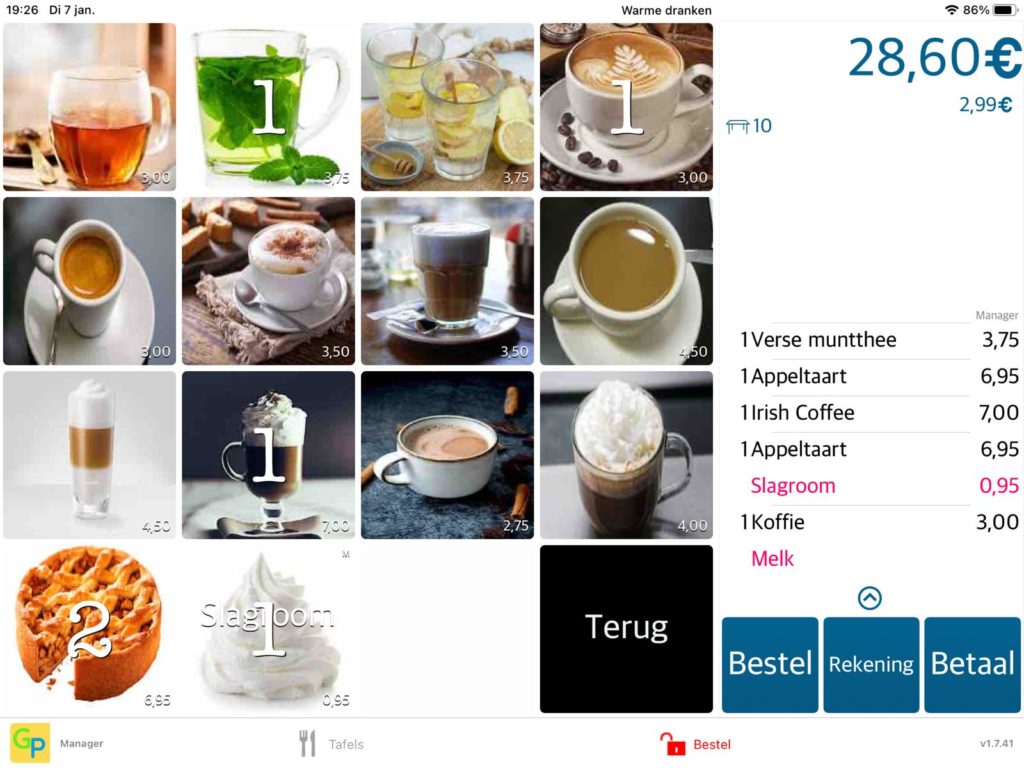
    We’re excited to introduce a new feature in WaiterOne: the ability to add images and pictures to your buttons! 🎉 This update lets you customize your interface like never before, making it more visually appealing and intuitive for your team.

    With this feature, you can:

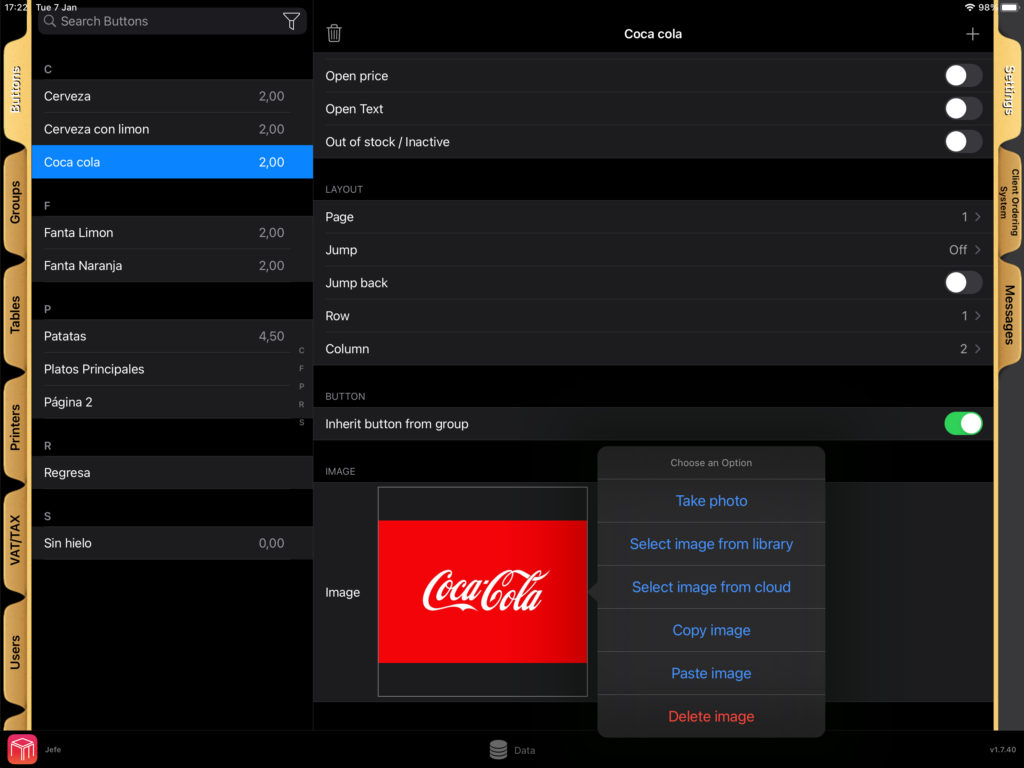
    • Upload images from your own library: Personalise buttons with photos or graphics that match your menu items or your brand.
    • Explore our cloud-based image library: Don’t have the perfect image? No problem! Browse through a variety of pictures available in our cloud and choose what works best for you.

    This not only makes your buttons look great but also helps your staff work faster by instantly recognizing items at a glance.

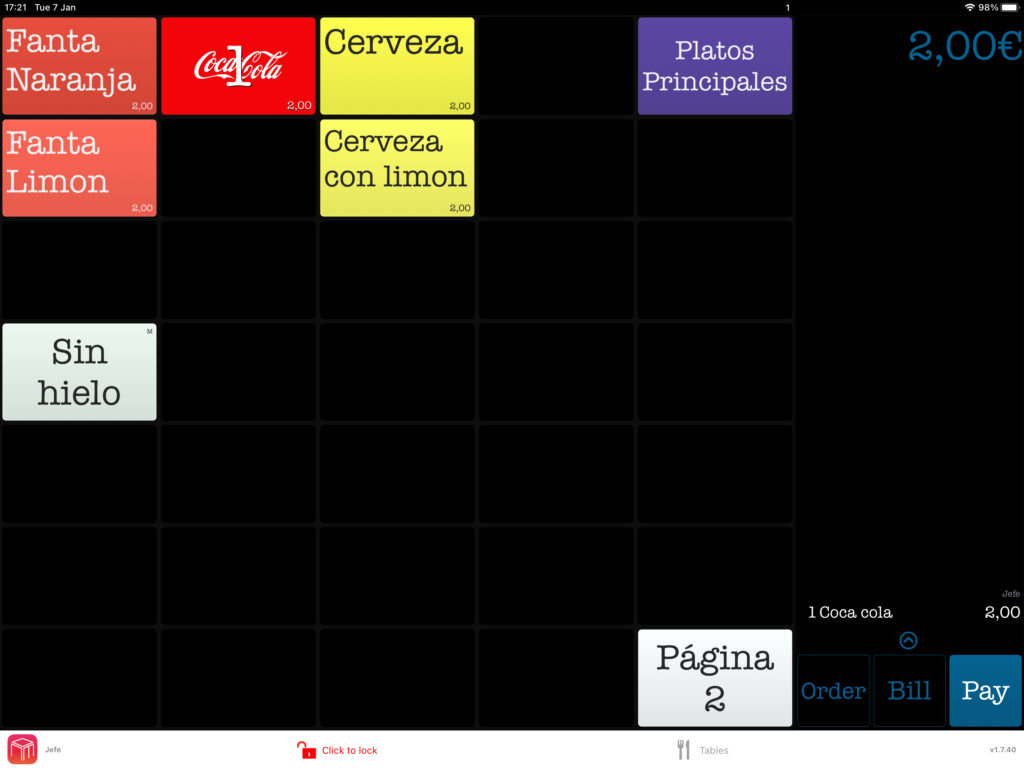
    Take a look at some examples below to see how vibrant and user-friendly your interface can become:

    Logo on an button
    Add images to buttons

    Ready to give your buttons a makeover? Start adding images today and bring your POS to life! 🎨✨

    WaiterOne screen with images on buttons
  • Streamline Operations with Guest Cover Management

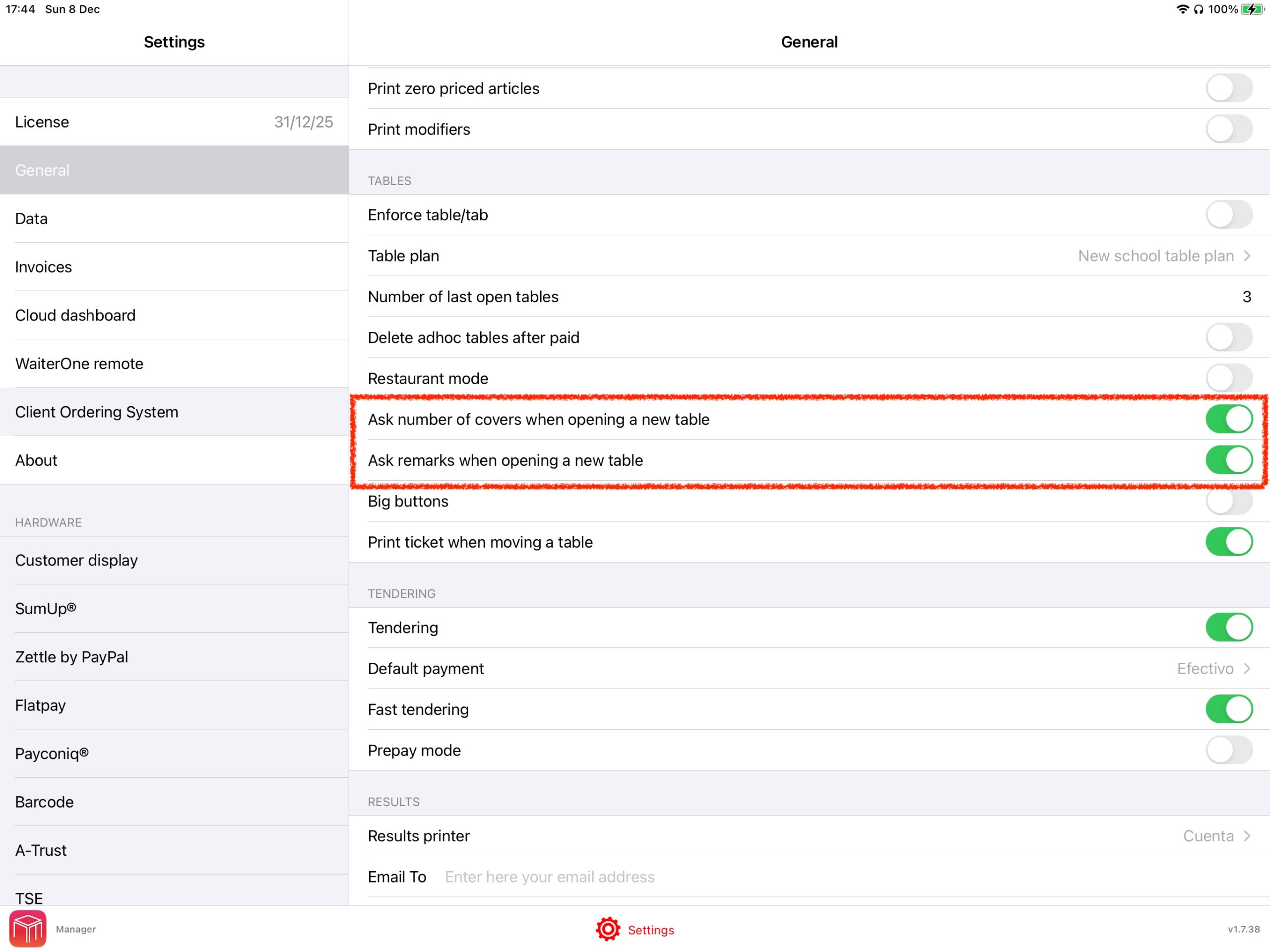
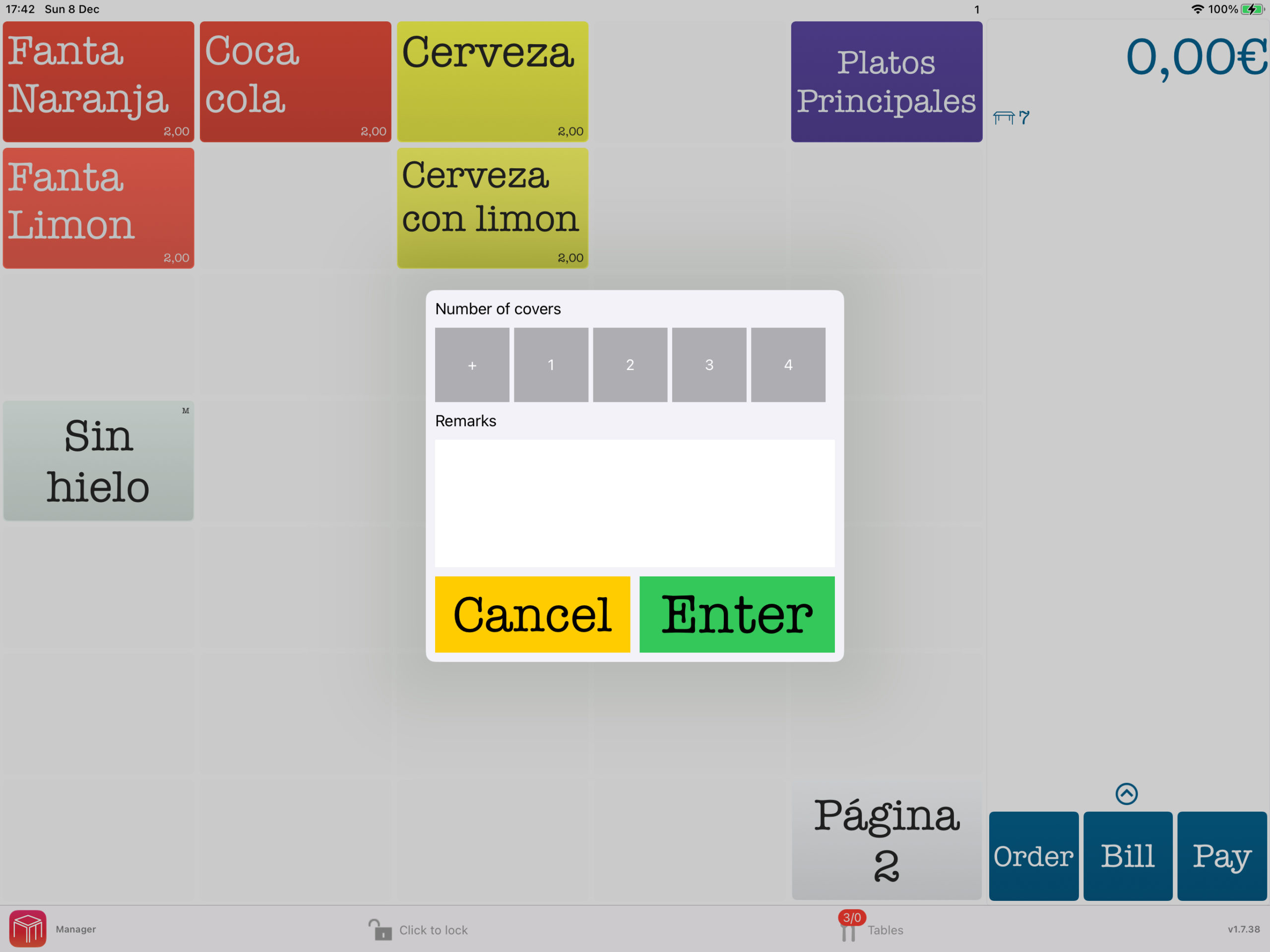
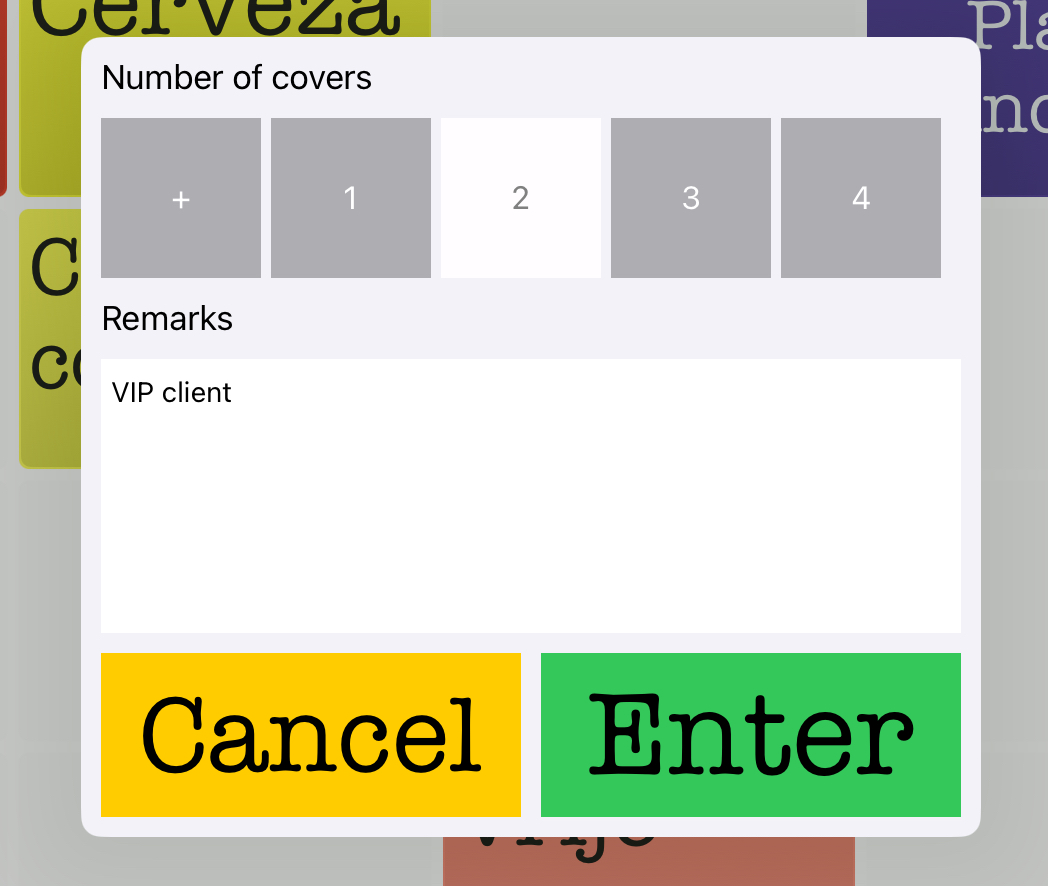
    With WaiterOne, adding “covers” allows you to seamlessly record the number of guests at each table, streamlining order management, enhancing accuracy, and providing valuable insights into guest traffic for improved reporting and operational efficiency. To activate go to Settings -> General -> Tables.

    Underneath is also an option to also ask a remark when opening a table e.g. VIP, no salt, …

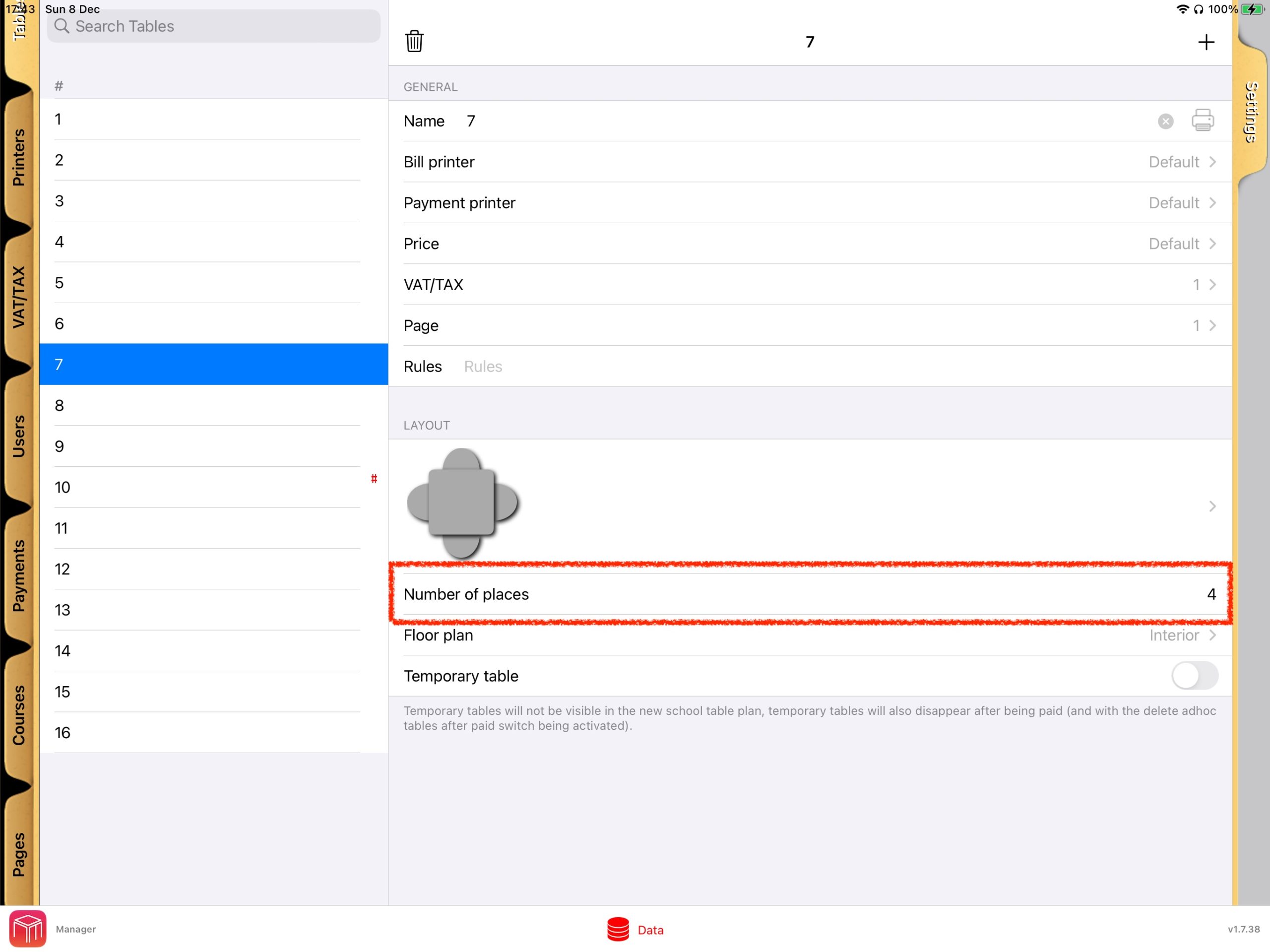
    Set the default number of places.

    All order tickets, to the bar, kitchen,… will have the number of covers and the remark you entered. The remark will not appear on the final bill of course.

  • Streamline Order Management with Colour-Coded Users

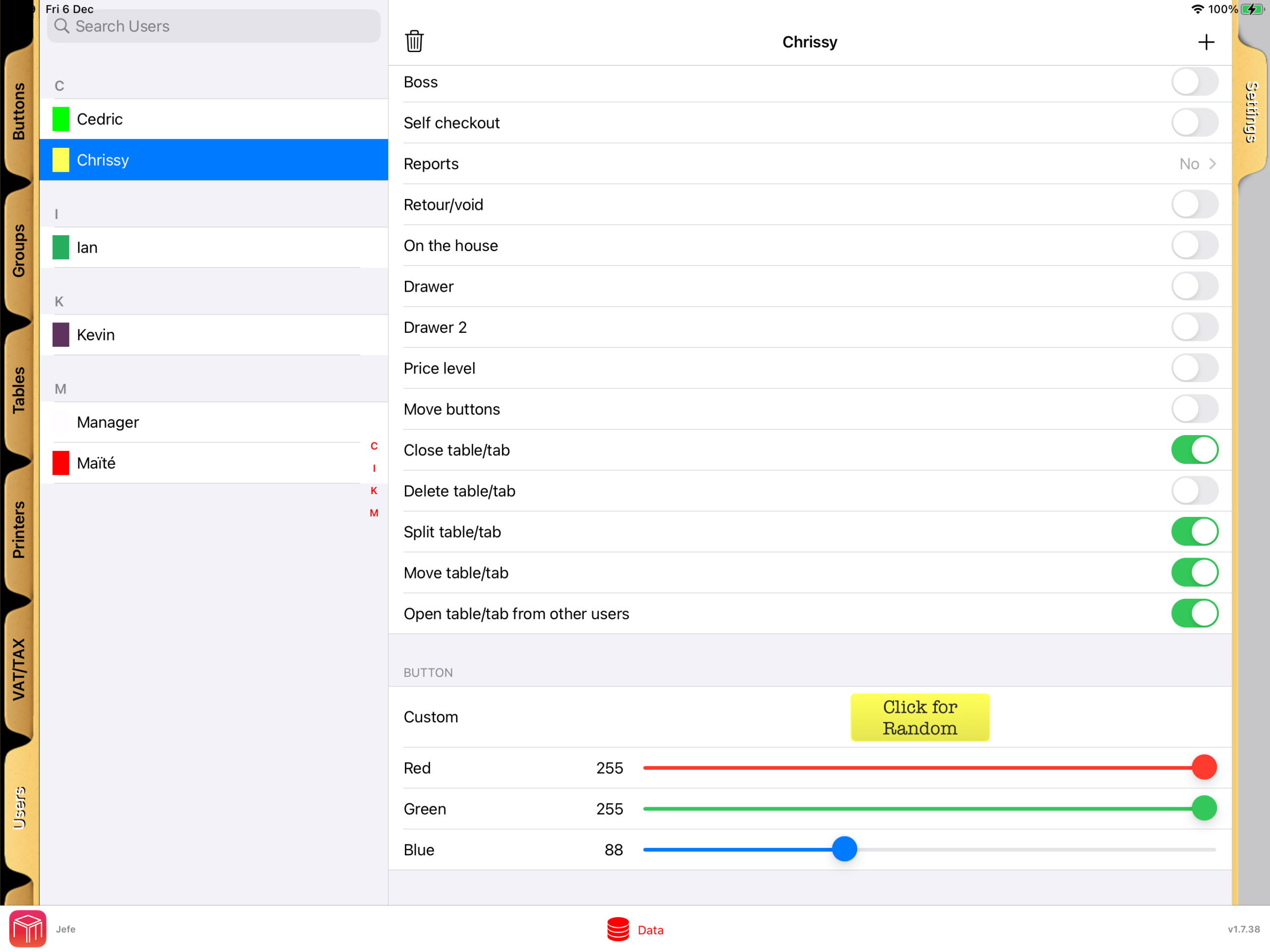
    With WaiterOne POS, managing your restaurant’s workflow becomes both intuitive and efficient. The system allows you to assign specific colours to users who are taking or entering orders, making it easy to quickly identify and prioritise tasks at a glance.

    User Rights and Table Plan Visibility

    User rights in WaiterOne.

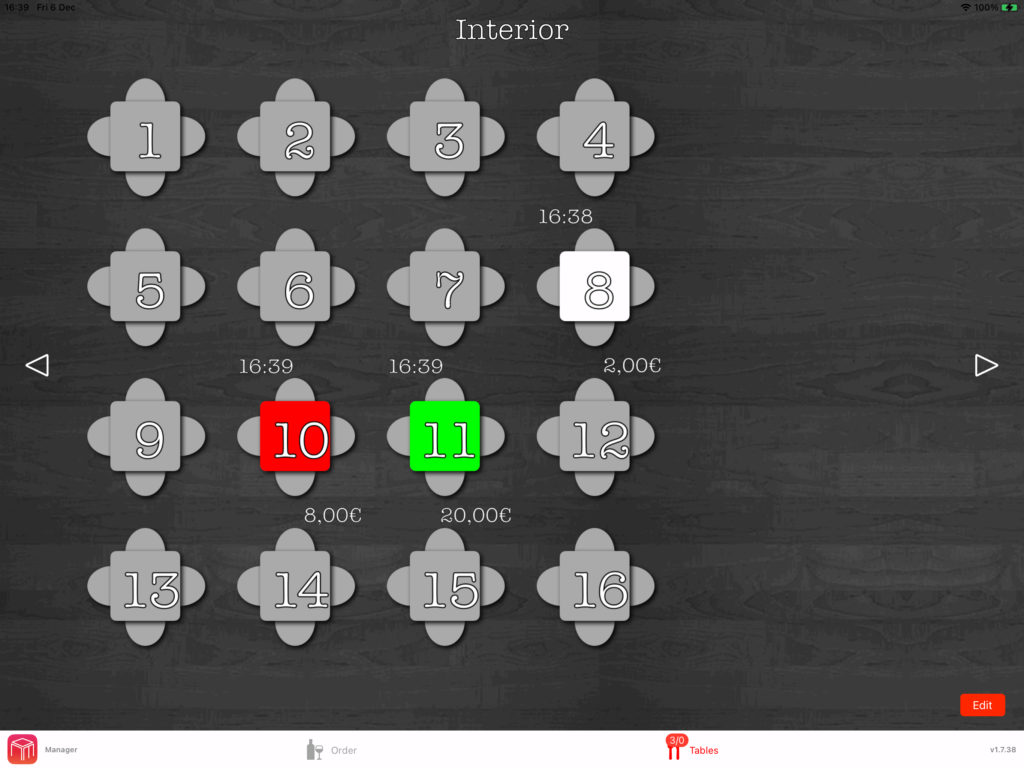
    In WaiterOne, each table on the floor plan is color-coded to match the user assigned to it. This visual cue lets you instantly see which server is responsible for each table.

    Table plan with tables in the colour of the user.

    Personalised KDS Settings

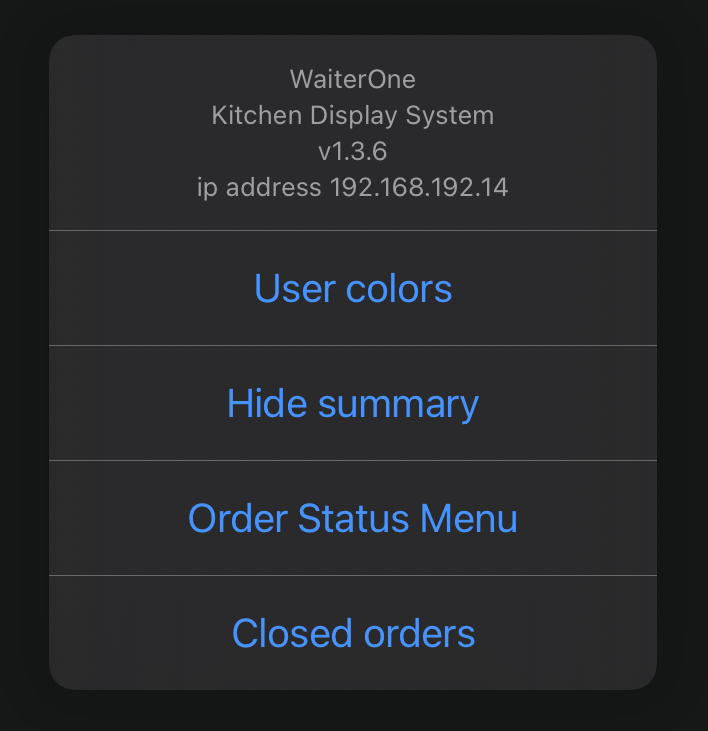
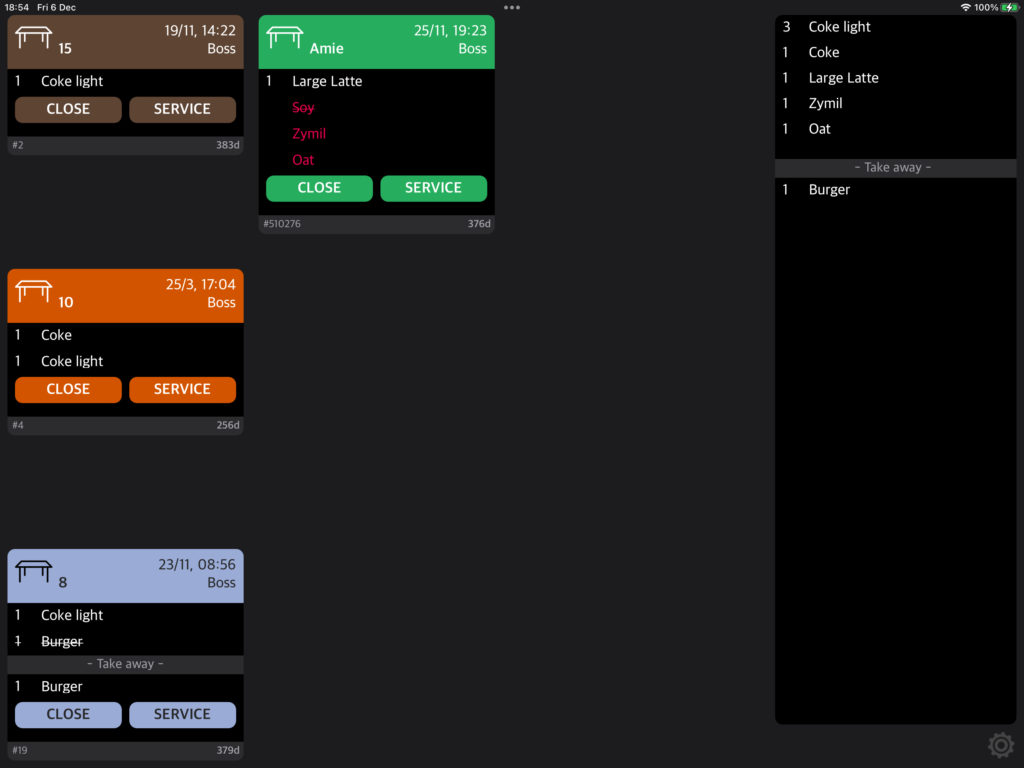
    On the Kitchen Display System (KDS), you can choose to display orders using the designated user colors or assign unique colors to each order. This customisation option ensures you can tailor the system to your workflow.

    Enhanced Communication Across Teams

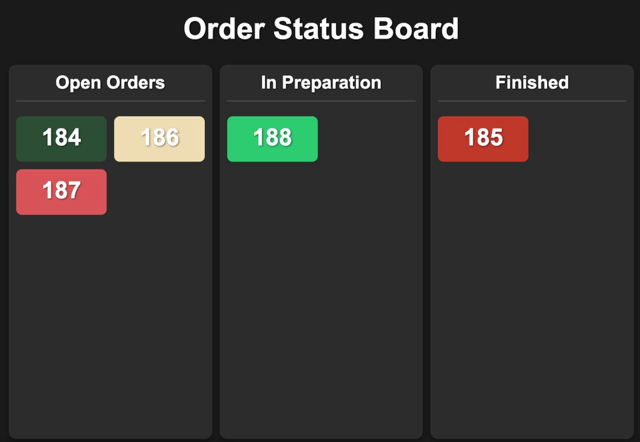
    The colour-coding system ensures seamless communication between front-of-house and back-of-house staff. When a user is assigned a specific color, it appears consistently across the status board and KDS, allowing everyone to stay aligned on order progress.

    Order status board with open, in preparation and finished orders.

    Better Organisation, Fewer Errors

    This integration enhances organisation and reduces the risk of errors, enabling your team to respond faster to customer needs. As a result, WaiterOne ensures a more streamlined dining experience, boosting customer satisfaction and improving operational efficiency.

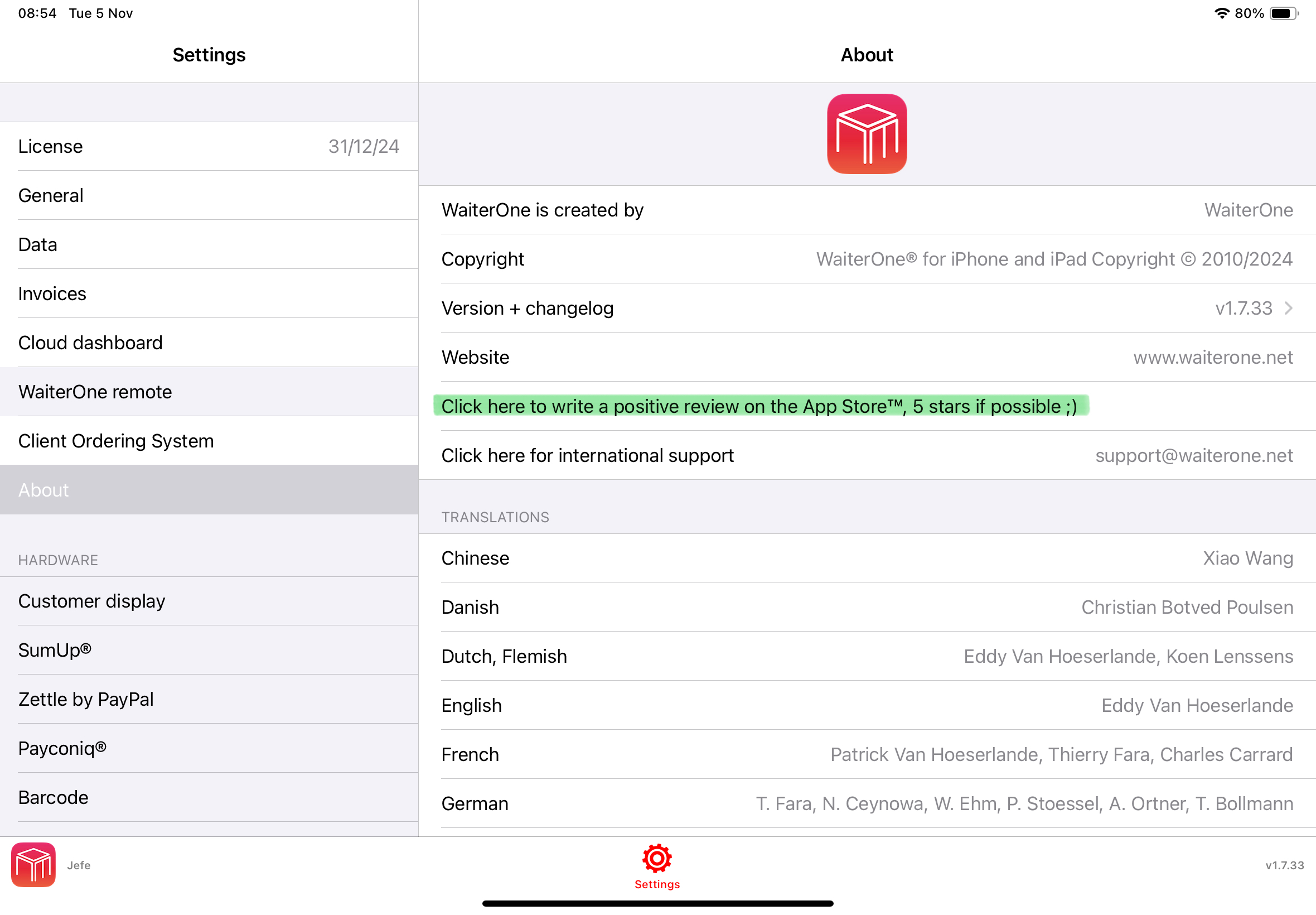
  • Break Language Barriers with WaiterOne POS: Multilingual Support in 18 Languages

    In today’s global hospitality and retail environment, clear communication is key. Whether you’re running a local café in Amsterdam or a bustling restaurant in Bangkok, the ability to serve both staff and customers in their preferred language makes all the difference. That’s why WaiterOne POS offers powerful multilingual support, allowing you to operate smoothly across diverse markets.

    Speak Your Customer’s Language

    WaiterOne POS is equipped to run in 18 different languages, including:

    Chinese, Danish, Dutch, English, French, German, Greek, Italian, Japanese, Norwegian, Polish, Portuguese, Swedish, Russian, Serbian, Spanish, Thai, and Turkish

    This multilingual capability ensures that staff and customers alike can interact with the POS system in a way that feels natural and intuitive no confusion, no guesswork.

    A Game Changer for International Businesses

    For restaurants, cafés, and retail stores operating in multicultural or tourist-heavy areas, multilingual support is not just a bonus it’s a necessity. WaiterOne POS helps businesses:

    • Train international staff more easily
    • Enhance service speed and accuracy
    • Deliver better customer experiences
    • Build trust and loyalty across language lines

    Whether you’re running a tapas bar in Spain, a sushi counter in Japan, or a boutique in Norway, WaiterOne adapts to your team and your clientele.

    Effortless Setup, Seamless Experience

    Languages in WaiterOne POS can be set per device or per user, giving each team member the freedom to use the interface in the language they’re most comfortable with. This flexibility leads to:

    • Fewer mistakes at the point of sale
    • Faster onboarding for new staff
    • Improved team communication
    • A professional, localized service for customers

    Serve Globally, Operate Locally

    WaiterOne’s multilingual support makes it an ideal POS solution for franchise operatorsairport and hotel restaurantsinternational retail, and any business that wants to scale globally while keeping operations smooth locally.


    Ready to Go Multilingual?

    Break through language barriers and deliver world-class service, no matter where you are. Choose WaiterOne POS the smart solution for multilingual, modern businesses.

  • More efficient kitchen with flexible KDS

    More efficient kitchen with flexible KDS

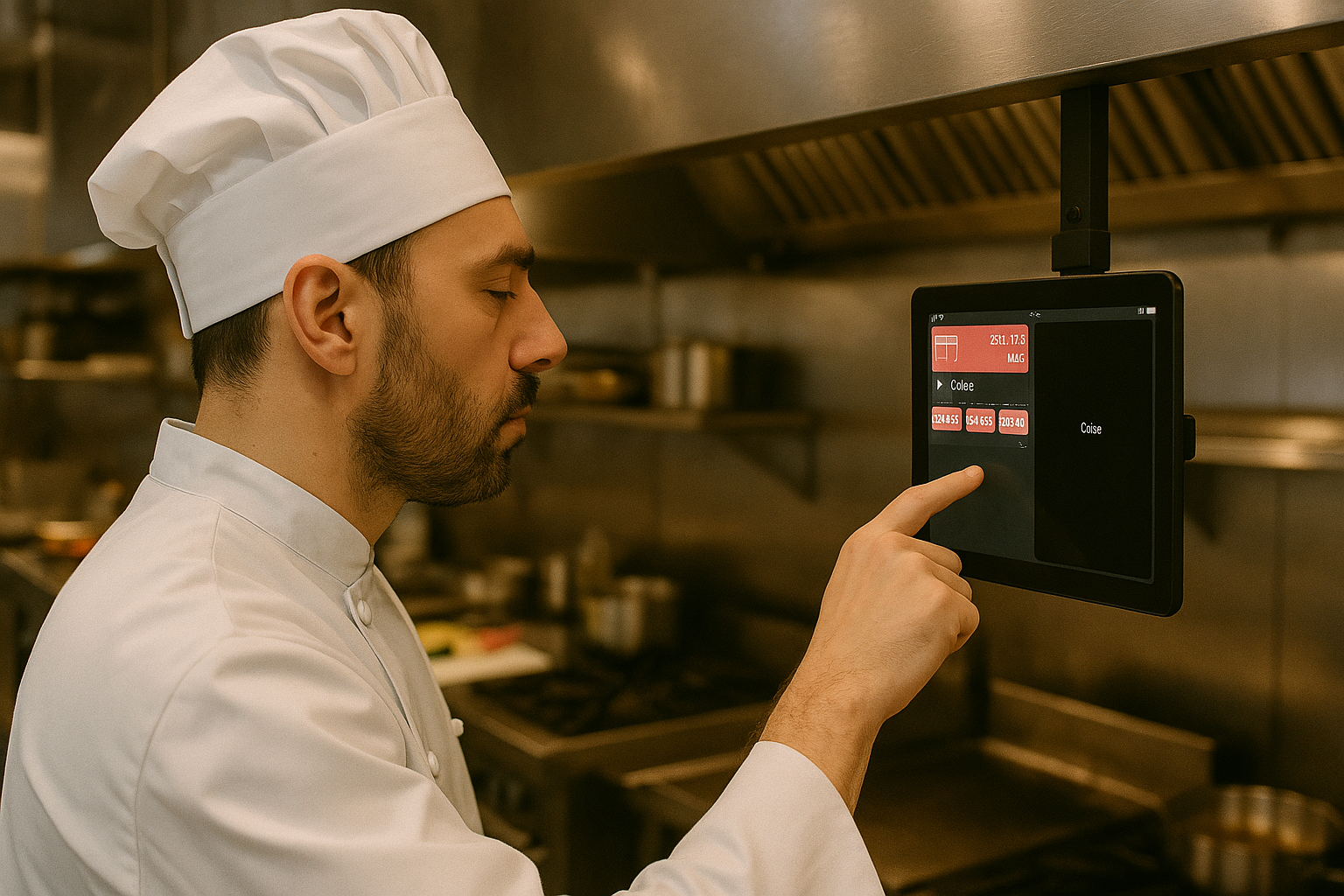
    A More Efficient Kitchen with Flexible KDS from WaiterOne

    In today’s fast-paced hospitality environment, speed, accuracy, and coordination are the keys to smooth kitchen operations. That’s why WaiterOne POS offers a powerful, flexible Kitchen Display System (KDS) designed to help restaurants streamline their order management like never before.

    What Is a KDS and Why Does It Matter?

    Kitchen Display System replaces traditional paper tickets with digital screens, helping chefs and kitchen staff instantly view incoming orders. This reduces confusion, eliminates lost or unreadable tickets, and ensures every dish gets out on time and just the way it was ordered.

    With WaiterOne’s KDS, your team can:

    • View real-time orders as they are placed
    • See clear modifiers and special requests
    • Mark items as prepared or delivered
    • Track order times to improve speed and quality

    Fully Flexible to Fit Any Kitchen Layout

    Whether you run a small bistro or a multi-station restaurant, WaiterOne’s KDS adapts to your workflow. You can set up multiple screens for different sections of the kitchen — grill, fryer, desserts, cold prep, or bar — so every team member sees only what they need.

    This flexibility allows for:

    • Faster communication between front of house and kitchen
    • More accurate food preparation
    • Reduced wait times for customers
    • Better overall service coordination

    Seamless Integration, Real-Time Sync

    WaiterOne KDS is fully integrated with the POS system, ensuring that orders appear on kitchen screens instantly and in the correct sequence. Modifications and voids are updated in real-time, minimizing errors and kitchen delays.

    And because it’s digital, there’s no paper to jam, run out, or misplace — just smooth, efficient kitchen performance.

    Improve Team Efficiency Without Adding Costs

    Unlike other systems that require expensive add-ons or complex hardware, WaiterOne’s KDS runs on affordable, commonly available screens and devices. It’s an easy-to-use, cost-effective solution that helps you:

    • Cut down on printing and paper waste
    • Speed up kitchen operations
    • Maintain consistent food quality
    • Handle high volumes with confidence

    Smarter Kitchens Start Here

    If your kitchen still relies on printed tickets or manual communication, it’s time for an upgrade. WaiterOne’s flexible KDS brings your back-of-house operations into the digital age, helping your team work faster, smarter, and with fewer errors.

  • Unlimited Printer Integration at No Extra Cost At WaiterOne POS for Restaurants and Cafés.

    WaiterOne stands out as one of the best POS systems for restaurants and cafés by offering unlimited printer integration at no additional cost. This powerful feature allows restaurant owners to streamline operations, improve order accuracy, and eliminate service delays all without extra fees or licensing.

    Why Unlimited Printer Support Matters for Your Restaurant

    In fast-paced hospitality environments, printing orders to the right location is essential. With WaiterOne POS, you can connect multiple printers across your restaurant from the kitchen to the bar, the counter, or any custom station.

    • Improve kitchen workflow with direct ticket printing
    • Send drink orders instantly to the bar
    • Keep front-of-house staff organized and efficient

    All of this happens automatically and seamlessly, supporting both small cafés and high-volume restaurants.

    No Limits, No Hidden Fees

    Unlike many POS systems that charge per device or printer, WaiterOne includes unlimited printer support by default. There are no monthly add-onsno per-printer charges, and no surprises. This makes it an ideal POS for growing businesses that need flexibility without increased costs.

    Built for Restaurants of All Sizes

    Whether you operate a small coffee shop or a multi-room fine dining restaurant, WaiterOne adapts to your needs. Unlimited printer integration helps:

    • Eliminate order bottlenecks
    • Enhance kitchen communication
    • Speed up service delivery
    • Reduce manual errors

    A Cost-Effective POS System That Scales with You

    WaiterOne POS is more than a point of sale system it’s a complete restaurant management tool. With support for unlimited printers, you gain the ability to scale your operations without worrying about added expenses or configuration limits.

    Optimize Your Restaurant Workflow Today

    If you’re looking for a flexible, scalable, and cost-effective POS system, WaiterOne is the solution. Say goodbye to printer limits and hello to efficient, streamlined service.

  • Why Pay More? Get Full POS Power with WaiterOne for Just €20/Month

    Running a restaurant or bar is challenging enough your POS system shouldn’t add to the stress. At just €20 per monthWaiterOne offers powerful, affordable, and no-nonsense technology that’s built for hospitality professionals who want performance, not problems.

    No Expensive Hardware Required

    Forget bulky terminals, crash prone PCs, or overpriced touchscreen systems. WaiterOne is designed to run on your iPad, giving you the power of a professional-grade POS without the need for high-end, high-maintenance hardware.

    • 🚫 No slow Windows PCs
    • 🚫 No costly touchscreens
    • ✅ Just your iPad and our software

    No Internet? No Problem.

    One of the biggest advantages of WaiterOne is that it runs locally on your iPad. Even if your internet connection goes down, your POS won’t.

    • 🌐 Works entirely offline
    • 📲 Even handhelds keep working
    • 🧠 No cloud dependency for critical functions

    Unlike cloud-based systems that freeze up when your Wi-Fi drops, WaiterOne keeps your service smooth and uninterrupted exactly what you need in a busy shift.

    No Hidden Costs or Bloating Back-Office Modules

    Some POS providers reel you in with base prices, only to add costs for essential features like reporting or back-office control often tied to expensive SQL server licenses.

    With WaiterOne, you get everything in one. No extra software. No hidden modules. No need for IT technicians to set it up or keep it running.

    • 💾 No SQL Server licenses
    • 🔌 No need for external IT support
    • 💼 No pricey service contracts

    Stable, Efficient, and Easy to Support

    WaiterOne is built for speed and simplicity. It doesn’t bog down over time or require constant servicing. If something goes wrong, it’s usually a minor iPad issue and most times, it can be solved without calling in expensive technical support.

    This minimalist approach is a game-changer in an industry where most POS solutions are overengineered and oversold.

    We Know You’re Comparing. That’s Okay.

    Looking at other POS systems? We understand. But once you factor in:

    • 💰 The monthly fee
    • 🔧 Hardware and support costs
    • 🧩 Complexity of setup and maintenance
    • 🌐 Reliability without internet

    …you’ll quickly see why so many hospitality businesses are switching to WaiterOne.


    The Smarter Choice for Hospitality

    At WaiterOne, we don’t rely on flashy sales tactics or unnecessary add-ons. We offer a clean, stable, affordable POS system that just works designed to keep your business moving, not tied up in tech issues.

    Whether you run a bustling restaurant, a beach bar, or a cozy café, €20/month is all it takes to put full POS power in your hands.

    Ready to keep it simple? Visit waiterone.net and discover the smarter way to run your business.

  • Take Control of Orders with WaiterOne’s COS (Client Ordering System)

    Take Control of Orders with WaiterOne’s COS (Client Ordering System)

    Imagine this: your customers scan a QR code, browse your menu, place their orders, and even pay all from their own smartphone. No apps to download, no tablets to hand out. That’s the power of WaiterOne’s COS, our streamlined Client Ordering System designed to supercharge restaurant service both in-house and online.

    What Is COS?

    COS is a web-based platform that lets your customers order directly from their phones—whether they’re seated at a table, ordering takeaway, or getting delivery. Built to integrate directly with WaiterOne, COS ensures a seamless experience from order to kitchen, without the chaos of paper tickets or miscommunication.

    Why We Built It

    The journey began with iPads at every table, but that quickly became impractical. We pivoted to something much smarter: leveraging the power of the device every customer already has—their smartphone. After extensive development, COS became a universal web app that runs anywhere, on any browser, no downloads required.

    Key Features of COS

    • 📱 Runs on any device: Smartphones, tablets, or desktop computers.
    • 🧩 Fully integrated with WaiterOne: No need to re-enter your menu. Your existing buttons and groups are synced.
    • 🏠 In-house or remote: Whether it’s a table-side order, pick-up, or delivery, COS handles it all.
    • 💳 Online payments: Integrated with Mollie for fast, secure transactions.
    • ⚡ Real-time updates: Orders arrive in WaiterOne instantly and can print directly to kitchen or bar printers.

    How It Works for Your Customers

    1. Scan a QR code (on a table, receipt, or your website).
    2. View the menu directly from their browser.
    3. Place the order with optional payment.
    4. Order arrives in WaiterOne, with full details and kitchen printouts.

    For dine-in, we even include service buttons clients can request the bill or call a server, all without leaving their seat.

    Simple Setup, Powerful Configuration

    From your WaiterOne iPad:

    • Activate the Client Ordering System.
    • Select which menu groups and items appear online.
    • Upload images, descriptions, and organize menu priority.
    • Choose delivery settings, pick-up options, and tax configurations.
    • Customize your COS page branding (logo, text, tags, colors).

    Want to offer different prices for delivery vs. dine-in? COS handles that. Need multiple VAT levels for local compliance? Done. Want to add a beautiful picture of your famous tiramisu? Just take a photo right inside WaiterOne.

    Smart QR Codes for Every Situation

    WaiterOne automatically generates:

    • 📦 Delivery/pick-up QR codes for takeaway flyers or website links.
    • 🍽️ Table QR codes that identify the exact table where the order came from (even printing the table name).

    No extra software or QR code generators needed.

    Where Orders Go: The COS Page in WaiterOne

    All incoming orders appear in the COS tab inside WaiterOne. From there, you can:

    • Accept or reject orders
    • Automatically send them to the kitchen
    • View deleted or missed orders
    • Check system status manually

    It’s a familiar interface, modeled after our Kitchen Display System (KDS), so your team can use it with zero learning curve.


    Ready to Let Your Clients Order Smarter?

    COS is your gateway to faster, smarter, and more customer-friendly service. Whether you run a local café or a busy multi-location restaurant, COS gives you a modern, elegant way to connect with today’s tech-savvy diners at the table or at home.

    Visit https://www.waiter.one to see it in action or activate it today directly inside WaiterOne.

    WaiterOne allows easy QR code integration, enabling customers to scan, view the menu, and place orders directly from their mobile devices. This enhances service speed, reduces contact, and improves the overall dining experience. Under settings, you can find this feature.